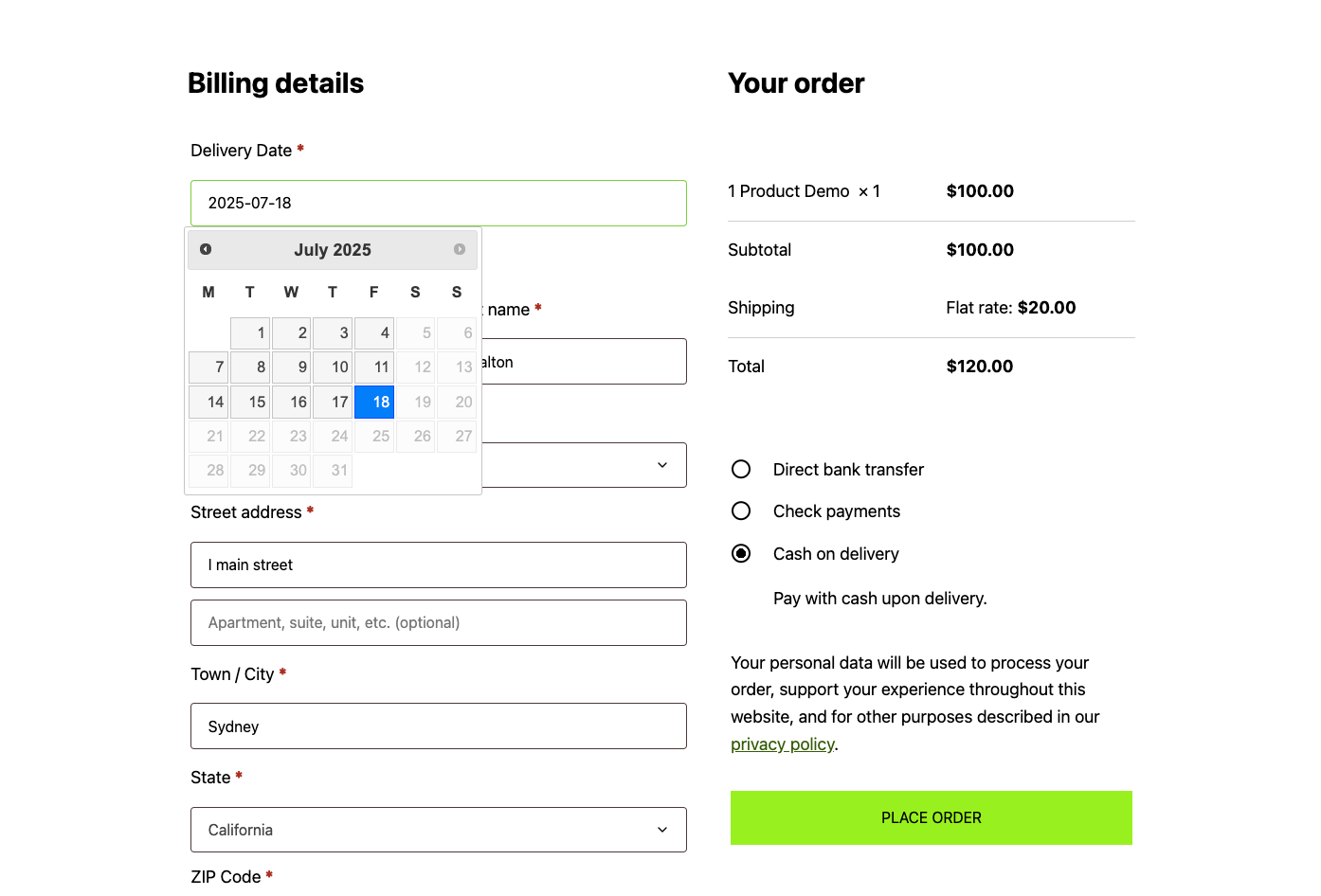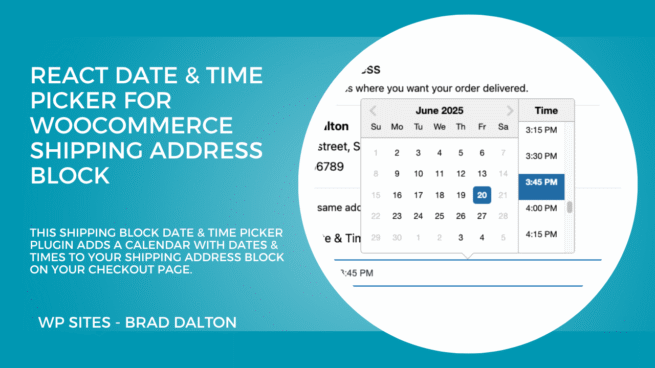
The Date Picker for WooCommerce Classic Checkout plugin enables you to add a delivery date picker to your classic checkout page. The date & time picker can be displayed conditionally based on your shipping options including flat rate, free shipping and local pickup as well as taxonomies.
Features:
- Works with classic WooCommerce checkout
- Customizable date picker settings
- Clean and modern interface
- Easy to set up and configure
Note: This plugin currently supports only the classic WooCommerce checkout. It does not support the new blocks-based checkout experience.
== Installation ==
- Install the plugin through the WordPress plugins screen directly.
- Activate the plugin through the ‘Plugins’ screen in WordPress
- Use the Settings -> WooCommerce -> Delivery Date to configure the plugins global settings.
Frequently Asked Questions
= Does this work with WooCommerce Blocks? =
No, this plugin currently only supports the classic WooCommerce checkout experience. It does not support the new blocks-based checkout. For checkouts using blocks, see this plugin.
= Can I customize the date picker? =
Yes, you can customize various aspects of the date picker through the plugin settings.
== Settings ==
The plugin can be configured through the WooCommerce > Delivery Date settings page. Here are all the available settings:
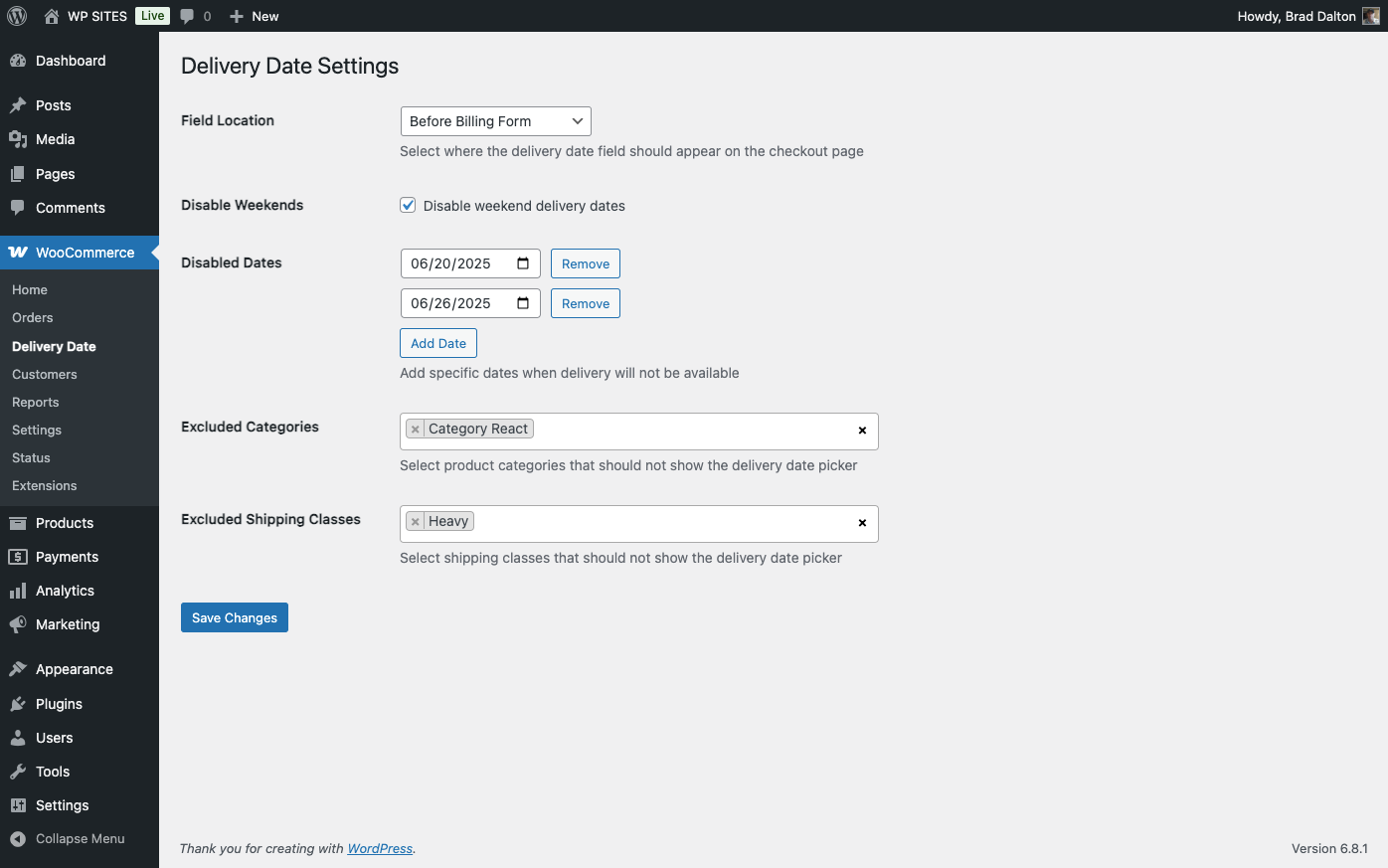
= Field Location Settings =
Classic Checkout Locations – Choose where the date picker appears on the checkout page:
- After Order Notes (default)
- Before Customer Details
- Before Billing Form
- After Billing Form
- Before Order Notes
- Before Payment
- Before Submit Button
- After Submit Button
- After Payment
= Product Settings =
Individual products can be configured in the product edit screen under the Shipping tab:
Disable Delivery Date – Check this box to disable the delivery date picker for specific products. This setting overrides global category and shipping class exclusions.
= Date Restriction Settings =
- Disable Weekends – Toggle to prevent customers from selecting weekend delivery dates
- Disabled Dates – Add specific dates when delivery will not be available
- Excluded Categories – Select product categories that should not show the delivery date picker
- Excluded Shipping Classes – Select shipping classes that should not show the delivery date picker
Each setting helps you customize how and when the delivery date picker appears to your customers.