
This tutorial provides 3 different ways to make your customers pay more for specific products in WooCommerce. In this example, we target a product which is heavy. To add fees based on specific products added to cart you can :
- Add a fee based on the product id
- Add a fee based on the shipping class
- Increase the standard flat rate shipping fee by any amount based on the products shipping class.
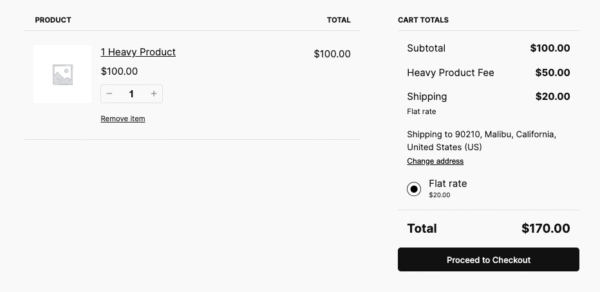
Method 1 & 2 shown in the 1st gallery image show your customer the added fee on the cart page.
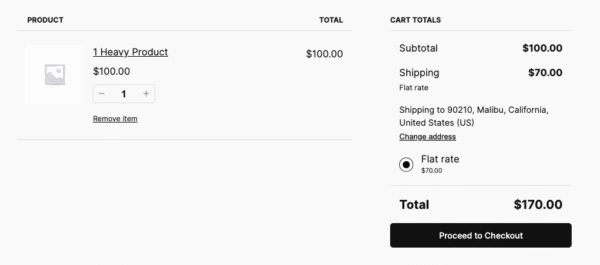
Method 3 shown in the 2nd gallery image shows the extra fee included in the shipping fee. This way the extra fee for heavy products is factored in rather than added as an extra fee.
Usage
Watch the video to learn how to use the code for method 3.
If using method 2 or 3, you will need to create a shipping class and assign it to your special product.
Method 1 requires you to swap out the product ID and extra shipping cost.
Method 2 requires you to swap out the extra cost and shipping class slug.
Method 3 requires you to swap out the extra cost and works with products assigned the shipping class heavy.
Code Methods 1 & 2
Add Flat rate fee using product id.
// Add a flat rate fee for a specific product
add_action( 'woocommerce_cart_calculate_fees', 'add_flat_rate_fee_for_specific_product_v1', 10, 1 );

function add_flat_rate_fee_for_specific_product_v1( $cart ) {
    if ( is_admin() && ! defined( 'DOING_AJAX' ) ) {
        return;
    }

    $product_id = 123; // Replace with the ID of your specific product
    $flat_rate_fee = 10; // Replace with your desired flat rate fee

    foreach ( $cart->get_cart() as $cart_item ) {
        if ( $cart_item['product_id'] == $product_id ) {
            $cart->add_fee( 'Special Product Fee', $flat_rate_fee, true );
            break;
        }
    }
}
Add flat rate fee using shipping class. This code will add an extra $50 to the shipping cost if any item in the cart is assigned the “heavy” shipping class.
add_action( 'woocommerce_cart_calculate_fees', 'increase_flat_rate_for_heavy_shipping_class_v1' );

function increase_flat_rate_for_heavy_shipping_class_v1() {
    $additional_cost = 50; // The additional cost for the heavy shipping class
    $heavy_class_slug = 'heavy'; // The slug for the heavy shipping class

    $has_heavy_item = false;

    foreach ( WC()->cart->get_cart() as $cart_item ) {
        $product = $cart_item['data'];
        if ( $product->get_shipping_class() == $heavy_class_slug ) {
            $has_heavy_item = true;
            break;
        }
    }

    if ( $has_heavy_item ) {
        WC()->cart->add_fee( __( 'Heavy Item Shipping Surcharge', 'woocommerce' ), $additional_cost );
    }
}
Code Method 3
This method modifies the default flat rate fee and changes it for products assigned the heavy shipping class.
add_filter( 'woocommerce_package_rates', 'adjust_flat_rate_for_heavy_class_v1', 10, 2 );
function adjust_flat_rate_for_heavy_class_v1( $rates, $package ) {
    $additional_cost = 50; // The additional cost for the heavy shipping class
    $heavy_class_slug = 'heavy'; // The slug for the heavy shipping class

    $has_heavy_item = false;

    foreach ( $package['contents'] as $cart_item ) {
        $product = $cart_item['data'];
        if ( $product->get_shipping_class() == $heavy_class_slug ) {
            $has_heavy_item = true;
            break;
        }
    }

    if ( $has_heavy_item ) {
        foreach ( $rates as $rate_key => $rate ) {
            if ( 'flat_rate' === $rate->method_id ) {
                $rates[$rate_key]->cost += $additional_cost;
                // To add cost to the taxes, if any (optional)
                if ( isset( $rates[$rate_key]->taxes ) && is_array( $rates[$rate_key]->taxes ) ) {
                    foreach ( $rates[$rate_key]->taxes as $tax_id => $tax_cost ) {
                        $rates[$rate_key]->taxes[$tax_id] += $additional_cost * ( $tax_cost / $rate->cost );
                    }
                }
            }
        }
    }

    return $rates;
}
Toggle Shipping Cost
Extend the code even further and add some jQuery to toggle the Shipping Field Cost when the shipping class is set too heavy.
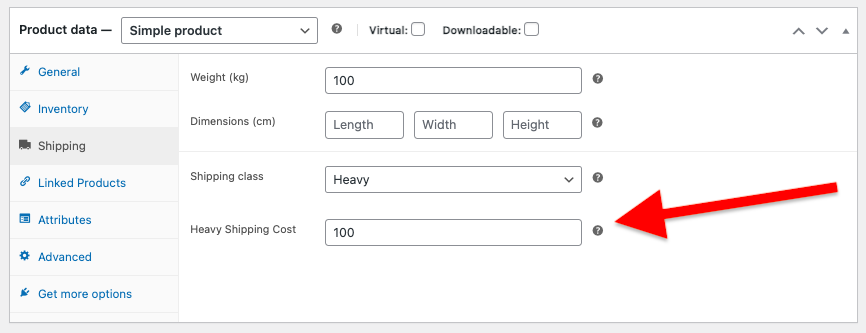
Hide it when not.
Find your shipping class id and change it in the toggle.js file.

The code snippets can be modified to do anything you like.
Need More Coding Help?
Leave a Reply
You must be logged in to post a comment.