
This PHP code enables you to display a table of taxes relating to your products on the customer order emails sent by WooCommerce. Here’s the table included on all customer new order emails.
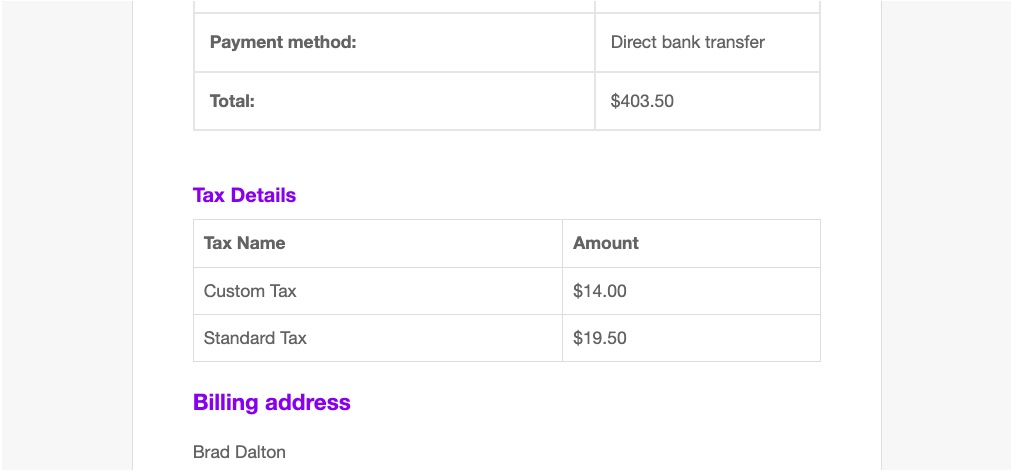
And here’s the code for your child themes functions file or code snippets plugin :
add_action( 'woocommerce_email_order_details', 'custom_show_taxes_in_emails', 20, 4 );
function custom_show_taxes_in_emails( $order, $sent_to_admin, $plain_text, $email ) {
    if ( $plain_text ) {
        return; // Skip for plain text emails
    }

    echo '<h3 style="margin-bottom: 10px;">' . __( 'Tax Details', 'woocommerce' ) . '</h3>';
    echo '<table style="width:100%; border-collapse: collapse; margin-bottom: 20px;">';
    echo '<tr><th style="border: 1px solid #ddd; padding: 8px;">Tax Name</th><th style="border: 1px solid #ddd; padding: 8px;">Amount</th></tr>';

    foreach ( $order->get_tax_totals() as $code => $tax ) {
        echo '<tr>';
        echo '<td style="border: 1px solid #ddd; padding: 8px;">' . esc_html( $tax->label ) . '</td>';
        echo '<td style="border: 1px solid #ddd; padding: 8px;">' . wc_price( $tax->amount, ['currency' => $order->get_currency()] ) . '</td>';
        echo '</tr>';
    }

    echo '</table>';
}
The code includes inline CSS you can modify.
Related Tutorials
- Display Price Including Tax in WooCommerce Products
- Conditional Shipping & Tax Fields for Checkout Block in WooCommerce
- How To Set Up Tax in WooCommerce – Beginners
- Different Tax for New & 2nd Hand Products Using WooCommerce
- How To Change The Tax Rate Based on User Role in WooCommerce
Was this helpful?
Thanks for your feedback!
Leave a Reply
You must be logged in to post a comment.